JAMB Candidates: Upload Your O’Level Results Without Stress
Introduction to JAMB CAPS
The Central Admissions Processing System (CAPS) introduced by the Joint Admissions and Matriculation Board (JAMB) is a modern platform designed to improve the university admission process in Nigeria. This innovative system replaces traditional manual methods with a digital approach, offering transparency and efficiency in managing admissions. Through CAPS, candidates have the ability to monitor their admission status in real-time and directly communicate their decision to accept or decline offers made by institutions.
CAPS also enables institutions to conduct merit-based admissions by adhering to the set requirements for each programme. Candidates can upload their academic records, including O’Level results, to ensure their profiles are up-to-date for consideration. By integrating various stages of admission into one central platform, CAPS aims to simplify the overall process for candidates, institutions, and regulatory bodies.
For those navigating their way through the system, understanding its functionality is essential to avoid potential setbacks. CAPS ensures that all data submitted by candidates is securely processed and matched with institutional criteria, providing a fair chance for all applicants. With user-friendly features, it accommodates a wide range of candidates while maintaining stringent data verification measures to uphold the credibility of admissions.
Steps to Upload O’Level Results
1. Log into the JAMB e-facility portal at https://portal.jamb.gov.ng/efacility/ using your registration number and password. Ensure your login credentials are entered correctly to avoid errors.
2. Once logged in, locate the ‘CAPS’ feature on the dashboard and click on it. This will direct you to the CAPS portal, where you can manage your admission-related details.
3. Within the CAPS portal, click on the link labelled ‘My O’Level’ or ‘Upload O’Level’ to proceed to the section where your results can be updated.
4. Fill in your examination details, such as your examination number, examination year, and the examination type (e.g., WAEC, NECO, or NABTEB). Double-check the accuracy of the information before proceeding.
5. Prepare a scanned copy of your O’Level result. The document must be clear and legible, saved in an acceptable format like PDF or JPEG, and meet the specified file size limit.
6. Upload the scanned copy by selecting the file from your device. Ensure the correct document is selected before proceeding to the next step.
7. Once uploaded, review all the entered details to confirm that they match the information on your result slip. Make any necessary adjustments before continuing.
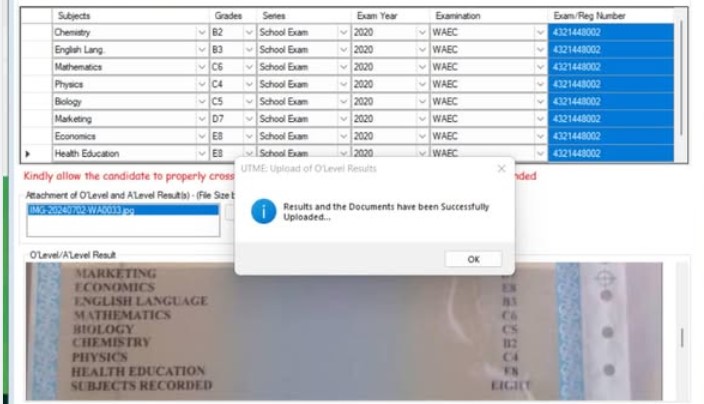
8. Save the changes and submit the information. Upon submission, a confirmation message should appear to indicate the upload has been successful.
If issues arise during the process, check your internet connection, file format, or file size to resolve them. Should problems persist, consult JAMB support or visit an accredited centre for assistance.
Common Challenges and Solutions
Candidates may experience various obstacles while uploading their O’Level results on the JAMB CAPS portal. One frequent issue involves difficulties accessing the portal due to incorrect login credentials or unstable internet connectivity. It is essential to ensure that your registration number and password are accurate and that your network connection is reliable before attempting to log in.
Another common challenge arises from file upload errors. These errors often result from non-compliance with file format or size requirements. Candidates should ensure their scanned documents are in the correct format, such as PDF or JPEG, and meet the size limits specified on the portal. Files that are blurry or illegible may also lead to rejection, so it is important to ensure the document is clear and properly scanned.
Technical glitches on the CAPS portal, such as pages failing to load or functions not responding, can also cause delays. In such cases, refreshing the page, clearing browser cache, or switching to a different browser may resolve the issue. Persistent technical problems may require contacting JAMB’s support team or visiting an accredited centre for guidance.
In some instances, candidates report a delay in receiving confirmation of their upload. This may occur due to high traffic on the portal, especially during peak admission periods. It is advisable to revisit the portal after some time to check the status of your submission.
For those needing corrections after submission, updates to uploaded results can usually only be made at accredited JAMB centres. It is, therefore, essential to thoroughly review all entered information and uploaded documents to minimise the need for subsequent changes.
Importance of Accurate Information
Providing precise and error-free information when uploading your O’Level results is a fundamental part of the admission process. Institutions depend on this data to evaluate candidates and match them against their programme requirements. Any discrepancies or inaccuracies in your submitted details can affect the processing of your application and diminish your chances of being considered for admission.
One of the critical aspects is ensuring the correctness of subjects and grades. Each course has specific prerequisites, and missing or incorrect entries could lead to your application being overlooked. For example, applying for a science-based course without the required credit in a core science subject might result in immediate disqualification, regardless of your performance in other areas.
In addition, details such as examination type, year, and number must be entered accurately to enable institutions to verify your credentials effectively. Errors in these fields may delay verification or even render your application invalid, as institutions rely on these specifics to cross-check your results with examining bodies.
Double-checking your uploaded document is equally vital. A blurred or poorly scanned result slip could prevent admission officers from properly reviewing your submission, leading to potential rejection. It is advisable to preview your upload to confirm that all information is clearly visible and legible before finalising the process.
For candidates submitting multiple sittings, it is important to upload results for all sittings in order to meet the minimum requirements for admission. Failing to include any supplementary results may result in an incomplete profile, reducing eligibility for selection.
By taking the time to review and verify all entered details, candidates can significantly improve the chances of a smooth admission process, avoiding complications that arise from errors or omissions.
Frequently Asked Questions
– How do I know if my O’Level results have been successfully uploaded? After submitting your results, a confirmation message should appear on the portal. You can also revisit the CAPS portal to verify that your details have been updated.
– What file formats are acceptable for uploading results? The portal accepts results in formats such as PDF and JPEG. Ensure the document is clear and within the file size limit specified by the platform.
– Can I upload results from multiple sittings? Yes, candidates who sat for multiple O’Level examinations can upload results for all sittings. This ensures their profile meets the minimum requirements for their chosen course.
– What should I do if I encounter an error during the upload process? Errors could result from incorrect login details, file size issues, or poor internet connectivity. Verify your credentials, ensure your document meets the required specifications, and check your network connection before trying again.
– Are there specific browsers recommended for accessing the portal? While most browsers are compatible, using updated versions of Chrome, Firefox, or Microsoft Edge can help avoid technical issues during the upload process.
– Is it possible to upload my results from a mobile device? Yes, the portal can be accessed via mobile devices. However, ensure the device is capable of uploading documents and that the scanned file is available on the device.
– Will I be notified if my uploaded results have an issue? No automatic notification is provided for upload issues. Candidates should periodically check the status of their submission on the CAPS portal or seek guidance if verification delays occur.
Resources and Support
Several resources are available to assist candidates experiencing challenges with uploading their O’Level results. Accredited JAMB centres are a reliable option for those seeking hands-on guidance with the process. These centres are equipped with trained staff who can help address technical issues or ensure your documents meet the required specifications.
For candidates who prefer online support, the official JAMB Help Desk can be accessed via the e-facility portal. This platform allows you to submit complaints or enquiries, and responses are typically provided within a reasonable timeframe. Make sure to provide detailed information when submitting a query to receive accurate assistance.
Educational consultancies and tutorial centres can also serve as a valuable source of support. Many of these institutions offer services that include step-by-step assistance with the JAMB CAPS platform and advice on meeting admission requirements. Ensure you select a reputable consultancy to avoid misinformation.
In addition, several online communities and forums provide an avenue for candidates to share experiences and tips related to the upload process. Social media groups dedicated to JAMB discussions often include seasoned candidates and education experts who can provide practical advice on resolving common issues.
Lastly, keep an eye on updates or announcements made by JAMB or your chosen institution. These often include clarifications and reminders that can help you avoid errors during the process. By taking advantage of these resources, you can address potential issues promptly and ensure your application remains on track.
Latest Post:
- DUFUHS Post-UTME/Direct Entry 2025/2026: Application Guide
- MOUAU Post-UTME & Direct Entry Screening 2025/2026: Application Guide 🌿
- MAUTECH Post-UTME & DE Screening 2025/2026 is ON! Apply Now
- ABSU Post UTME/Direct Entry Screening Form | Abia State University
- TASCE/OOU Degree Post-UTME & Direct Entry Screening 2025/2026 is Open!